
- Details
- Written by: Super User
G price tracker - track prices online - Manual

If you have a much older android phone, try this older version (apk)
Purpose and use
Getting Started
Examples of links
Possible problems
Advanced options
Extraction rules (+ examples)
Purpose and use
G Price Tracker is an app that monitors webpage content to track, for example, any listed price.
This app has been created initially to check periodically the prices of the video games sold on the sites "Steam" and "GoG" ("good old games"), but it can check any update of a (small) string of characters on a website.
|
IMPORTANT to know:
Also, you CAN'T buy anything directly through this app! |
Getting Started
Once you launch the app, you should see the main window:
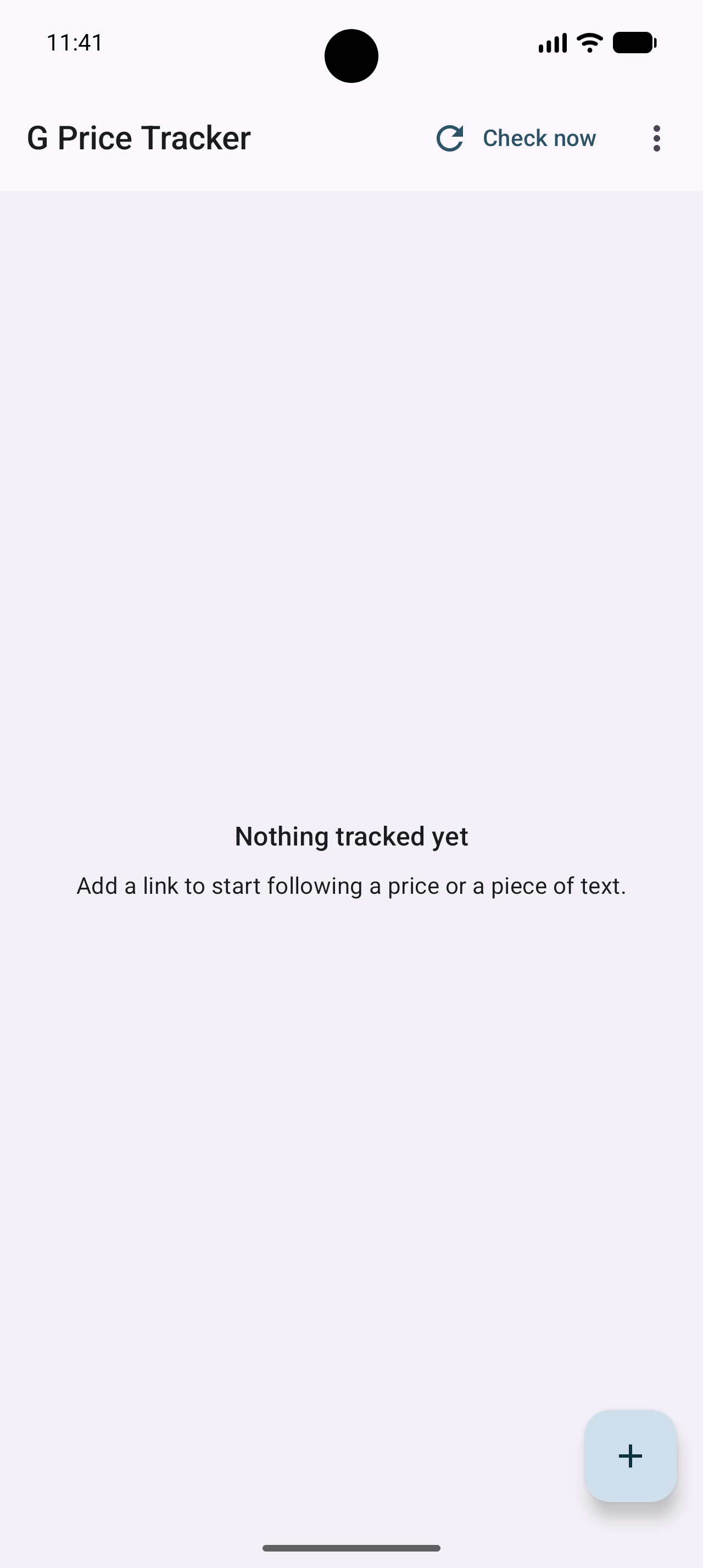
(Screenshots made with Android Studio)
Add a new webpage:
Tap the '+' icon in the bottom-right corner of the screen.
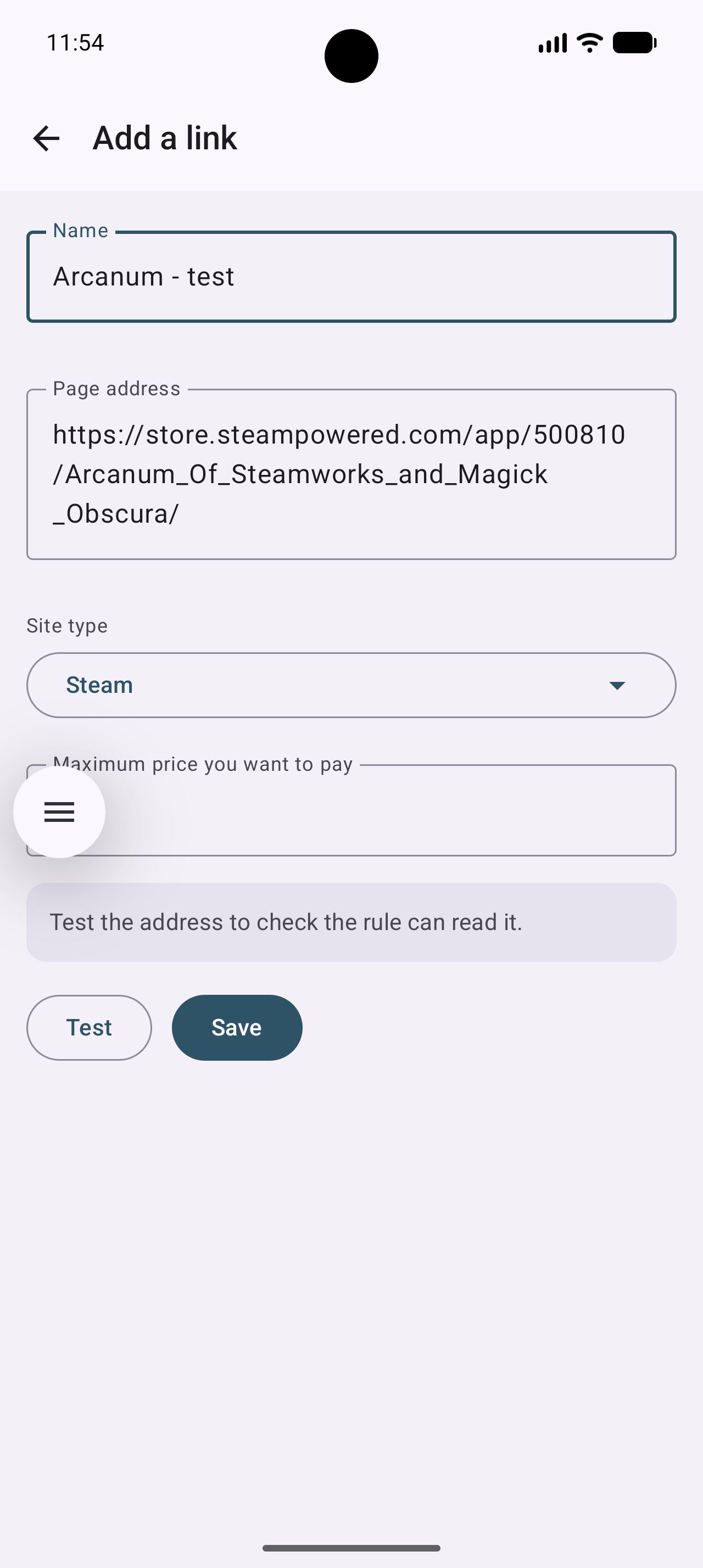
This is the default "Add a link" menu that you will get if your list of sites is empty.
I selected this game because I like it and because it is not an expensive game. I am not paid to list this game.
The "Site type" is used to determine how the webpage is requested and how the data is extracted. By default, the site type is "Steam". You can define new site types (in another menu).
If you want to add a new webpage, I suggest you copy the link to the webpage (URL) from your favorite browser and paste it here.
To test how the app works, click on "Test".
Wait that the price is loaded:
(The app needs access to the internet).
2 New information are added:
- The price (that can only be a number, but not necessarily an integer)
- The currency.
A timestamp is also added in the background.
Click on the "Save" button to add your new link to the list of webpages.
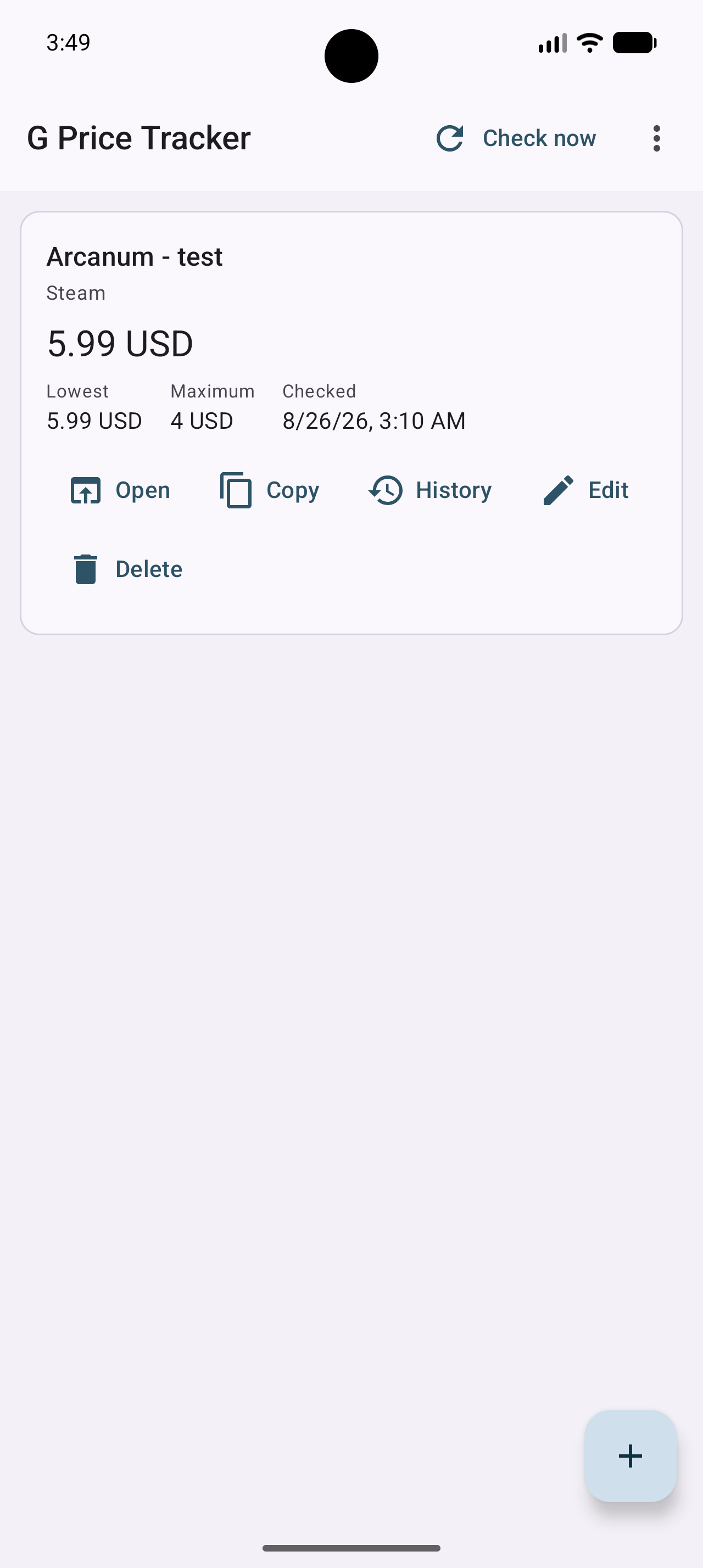
You are here on the main menu.
You could now click on the "check now" text at the upper right of the screen to update the price, but prices don't change that often.
Edit a webpage:
All the information of the webpage are loaded except the price data.
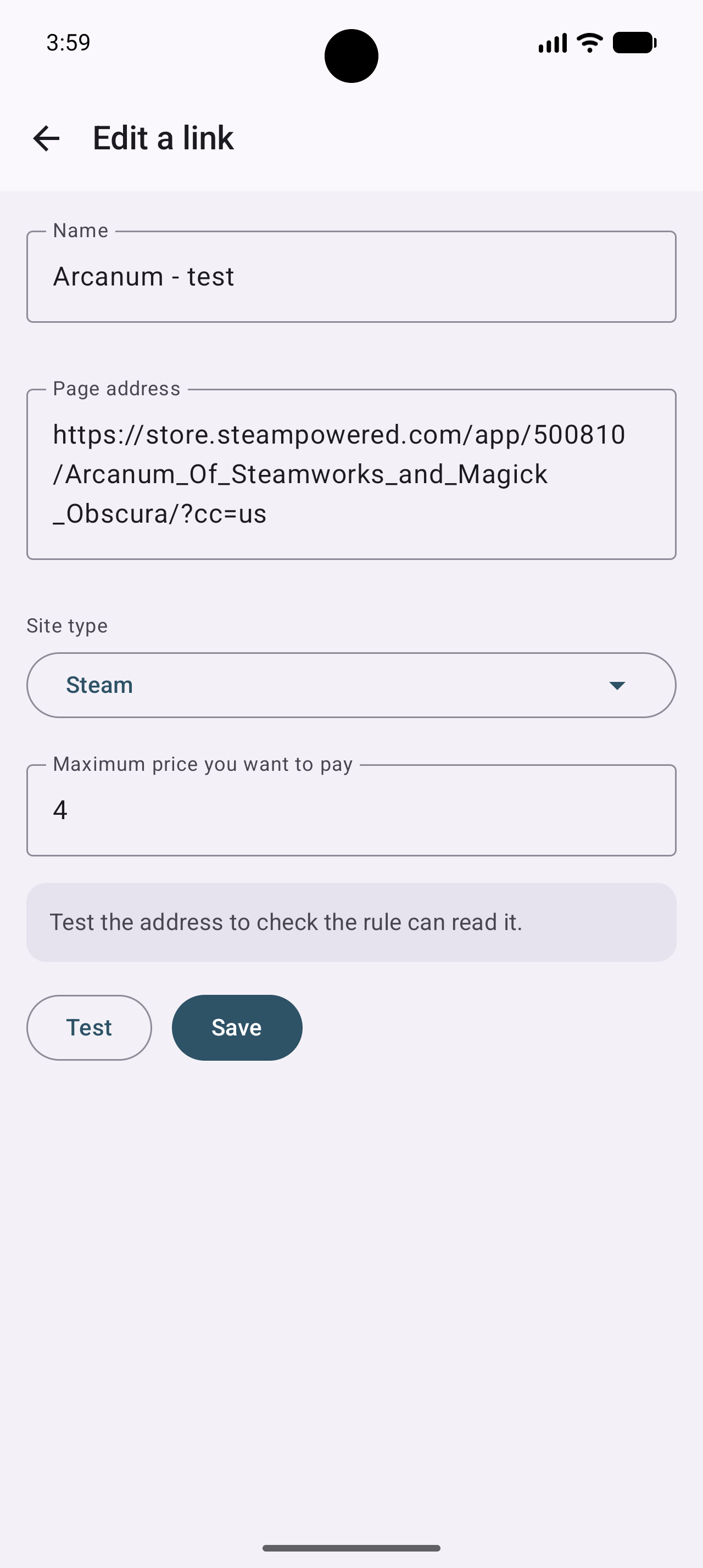
View the data of the webpage
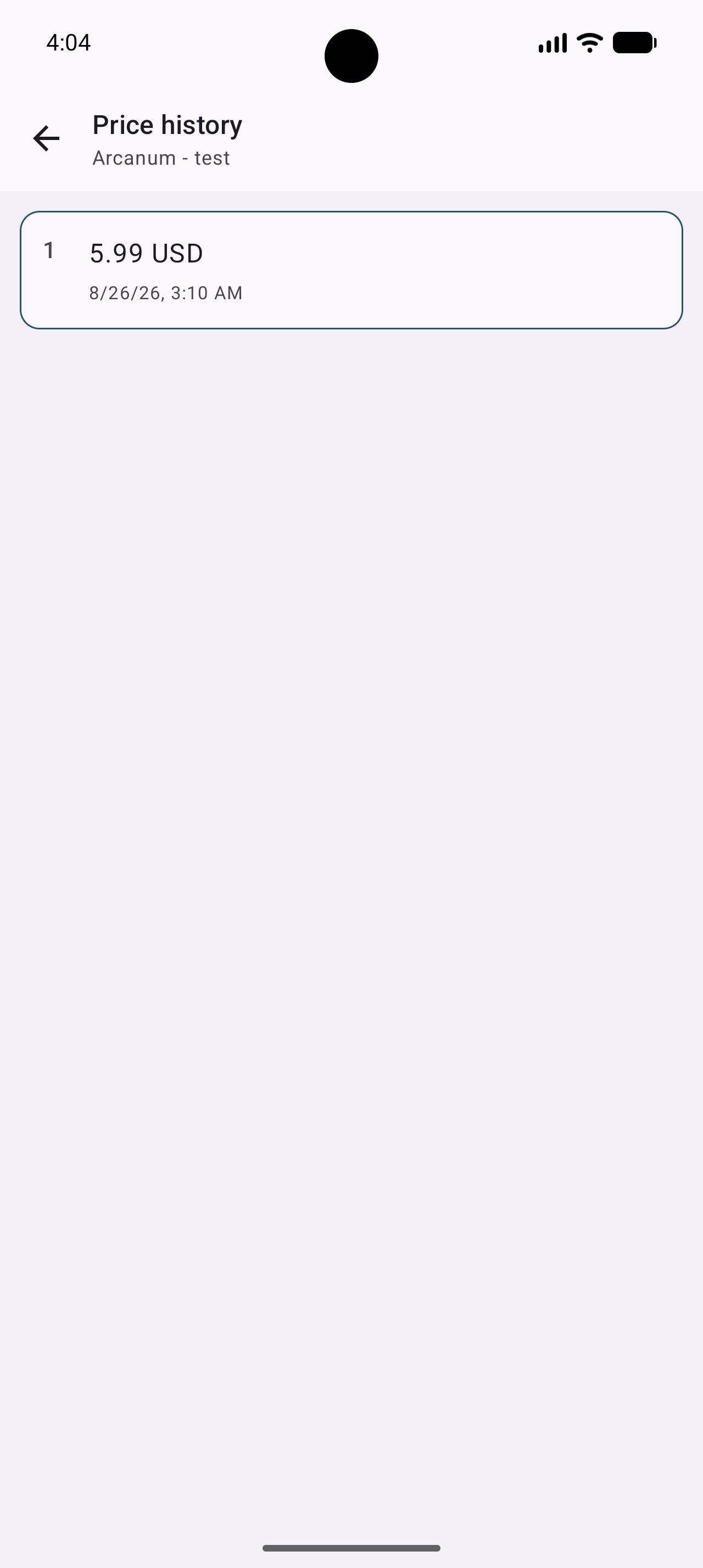
If you click on "history", you get this menu:
Here are some examples of links with the default rules:
(Please pay attention to the format of these links, many more links will work)
- Steam
example:
https://store.steampowered.com/app/323580/Jotun_Valhalla_Edition/
(latest test August 26, 2026)
- Steam bundle
examples:
https://store.steampowered.com/bundle/8133/Borderlands_The_Handsome_Collection/
(latest test December 6, 2019, uses an age check. Known bug in the new version)
https://store.steampowered.com/bundle/7167/Titan_Quest_Bundle/
(latest test December 6, 2019)
Links like https://store.steampowered.com/sub/... may also work
- Steam (but with a fixed currency)
add ?cc=(country code), at the end of the link
examples:
https://store.steampowered.com/app/323580/Jotun_Valhalla_Edition/?cc=uk
(pounds)
https://store.steampowered.com/app/323580/Jotun_Valhalla_Edition/?cc=us
(American dollar)
https://store.steampowered.com/app/323580/Jotun_Valhalla_Edition/?cc=ca
(Canadian dollar)
https://store.steampowered.com/app/323580/Jotun_Valhalla_Edition/?cc=th
(baht)
https://store.steampowered.com/app/323580/Jotun_Valhalla_Edition/?cc=mx
(Mexican dollar)
https://store.steampowered.com/app/323580/Jotun_Valhalla_Edition/?cc=ru
(ruble)
https://store.steampowered.com/app/323580/Jotun_Valhalla_Edition/?cc=cn
(yuan)
https://store.steampowered.com/app/323580/Jotun_Valhalla_Edition/?cc=jp
(yen)
https://store.steampowered.com/app/323580/Jotun_Valhalla_Edition/?cc=za
(rand)
https://store.steampowered.com/app/323580/Jotun_Valhalla_Edition/?cc=il
(shekel)
https://store.steampowered.com/app/323580/Jotun_Valhalla_Edition/?cc=ch
(franc suisse)
Use this kind of link if you use a VPN or if you travel often to another country.
- GoG
examples:
https://www.gog.com/game/pillars_of_eternity_definitive_edition
https://www.gog.com/game/planescape_torment_enhanced_edition
Possible problems and troubleshooting (please read):
- For the website Steam, the tags/layout used by the site are not fully standardized, especially for bundles.
One day it may work, the other day, there is a sale and you will get the price of an item in the bundle instead of the price of the full bundle.
This means that you need to check that the price that you get in the app is really the good one.
It may bug periodically for some games, but first i can't do anything against that and second, i don't think it is a big issue.
- Gog links may have different prices options, the software may only return one of them, but it is maybe not the one that you want.
Solution: create your own rule for this specific page or ...
... go to another Gog page with the same game but with another price option (it is what i usually do):
Example:
https://www.gog.com/game/pillars_of_eternity_definitive_edition
https://www.gog.com/game/pillars_of_eternity_hero_edition
Advanced options:
All the options that i describe below are for advanced users (with their smartphone) and they are not "foolproof". When you enter any data, make sure you understand what it does, because the app will likely not double-check it for you.
The "settings" Menu
From the main screen click on the "..." then "settings" to access to the menu with all the parameters:
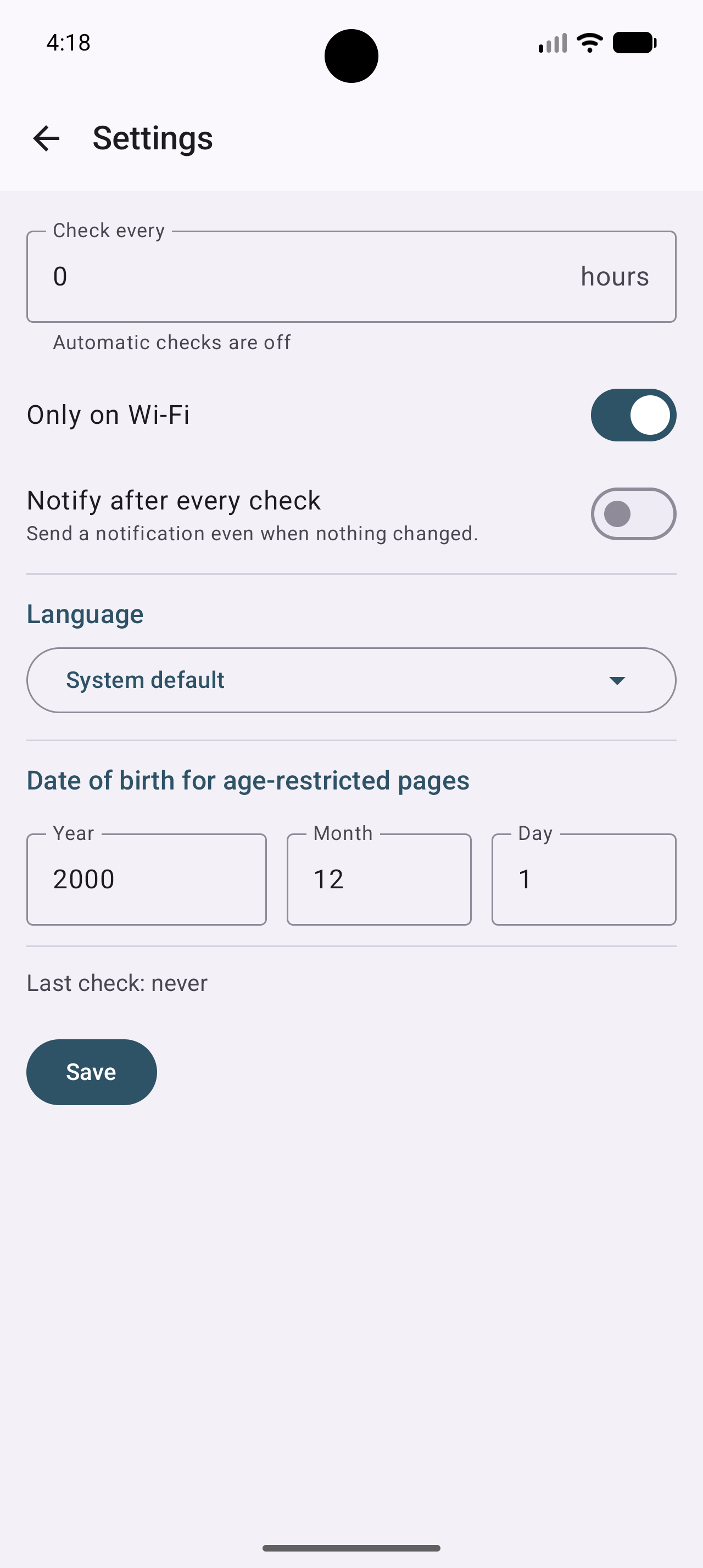
These options should theoretically tell the app to check the webpages automatically and periodically.
If you enter any positive integer ("1","2","3","4",..."10"..., but not "3,5", "3.5", or "-1" ) next to "Check every" and press "Save", the app will open a "service" with a timer that should check your webpages every [your value] hour(s).
If the option "only on wifi" is checked, the app will test if you are using a Wi-Fi connection and if yes, it updates the price when it's time to update the prices.
In this case, you should also disable your mobile phone internet to make sure that it's not this connection that is going to be used to update the data.
If you uncheck this option, make sure that the app works the way you want it to on your device. Using a mobile data connection may incur additional charges.
Please monitor your data usage and contact your mobile operator to check potential costs.
The timer will likely not work if...
- Your smartphone is in deep sleep (or doze mode): in this case the update should be done shortly after you use your device again (or if something wakes it).
- You have a task killer (most of the smartphones have one). In this case, it can be fixed on some smartphones by adding an exception to the list of apps that are monitored by the battery saver of your system (but it could not be enough.)
- It may not work at all if you are using a smartphone that uses a very aggressive policy to kill the apps in the background.
Check this website if you want to know more:
"Don't kill my app"
An example with a Huawei p9+:
I have to go to "Battery" >> "Launch" >> (find the app) >> "Manage manually" (auto-launch, secondary launch, run in background, then "OK")
then go from the parameter menu to "Apps & notification" >> "Apps" >> Settings (bottom of the screen) >> Special access >> Ignore battery optimization >> Select "all apps" and allow my app.
And even like that:
- No service will be restarted automatically if you close the app from the list of app.
- No service will be launched during the boot sequence of the smartphone.
It means that the timer may work if you let the app open in the list of app.
When i tried to do a similar thing on a "Huawei P30 pro" (same brand), it worked exactly how it should...
Notice also that doing an update of your phone may change the behavior of the smartphone with the app...
If it's too much of a hassle, just keep/set the timer to 0 and update the prices on demand with the "Check now" command: on the main screen and probably keep the app on the foreground while the update is done...
| For everything below: You
need a decent knowledge of the HTTP protocol. |
Extraction rules:
What does the app do?
- It opens a webpage and requests it with some headers (cookies, user-agent,
post data, accept, accept-language..).
The resulting answer that you will receive from this request may
vary if you change this data.
Also the result may vary for the same webpage, from one
server to another ! (because of the server configuration)
|
Important: The result that the app sees is an HTML code and not a
webpage text (what you get if you check the source code of
a webpage !) *** Example*** "what you see" *** End of the example*** The actual source code of the example: <p>"what
<u>you</u><br></p><p>see"<br></p><p> |
- Once the page is loaded and as long as the result is not in a
kind of cypher/encrypted format that you may not notice in a
browser (JavaScript code, compression...), the app tries to find
the Nth string given as a reference (... string -) and then, tries
to find a second string (... string +). The app returns the text
that is between the 2 positions that are being found (after some
character filtration so the line can be displayed in the app).
Example with this pseudo-code:
jksskjqskdqsmkkqqq54sssksfjkfslkfssss87qqq10sss
If the string 1 (-) is qqq Nth=1 and string 2 (+) is sss, the app
will return 54.
If the string 1 (-) is qqq Nth=2 and string 2 (+) is sss, the app
will return 10.
(Click on "rules" in the Full parameters menu to access to the
rule menu)
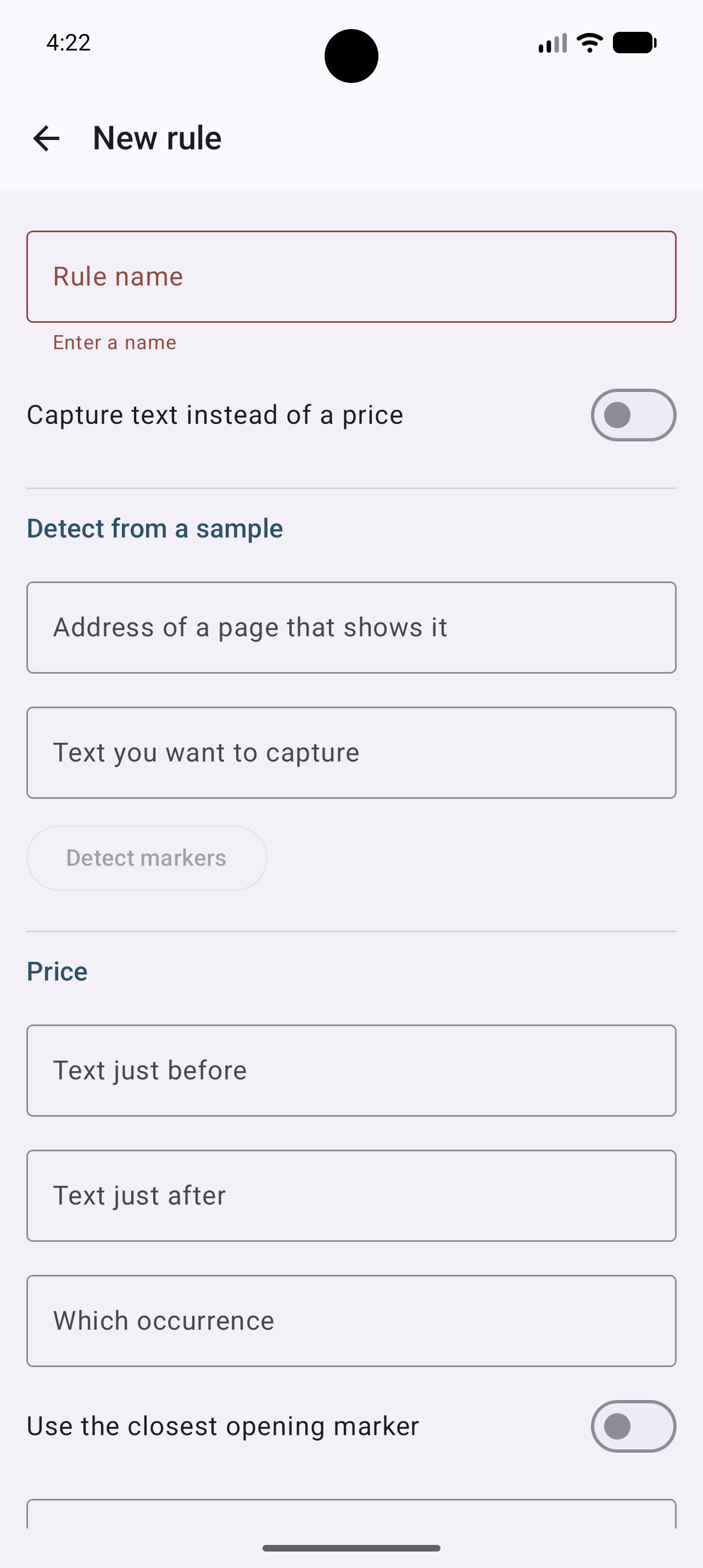
In this case if the string 1 (text just before) is qqq and string 2 (text just after) is sss with "Which occurence"=1, the app should return 54 too, but there is no reason for the results to be equivalent.
If you enter a "fixed string", you will always get this fixed string.
The app does all of this for the price and expects a result that
can be converted into a number (to check if the price is
lower than your maximum price).
Then the app does the same thing for the currency string, that
doesn't have to be a number. Some characters are filtered at this
point (bug prevention, display purpose).
The rules menu allows you to configure these options to some
extent.
Note that you are not forced to look for a price, you could do the extraction, for example to check if a product is in stock.
Usually to properly set up a new extraction rule, you need to use an HTTP diagnostic tool, to copy an HTTP request.This is "pretty easy" to do on a computer with the browser Firefox, in the web developer menu with the network submenu.
Chrome (for developer) could likely do the trick too.
Just open the webpage in your browser and check the headers and
cookies, then inspect the source code of the webpage.
It is a bit more difficult to do this with an app on a mobile
phone, since a mobile phone is not very convenient to use as a web
diagnostic tool.
Make sure to use a user-agent that will return a result similar to
the one you get with the diagnostic tool.